Vehicle Overview
The Vehicle Overview is the large panel at the top of the Overview dashboard. It shows the vehicle's current state at a glance and can switch to a map of where the vehicle is. It is a normal dashboard widget, so you can also add it to any other dashboard from the editor's Add widget catalog.
Cluster view
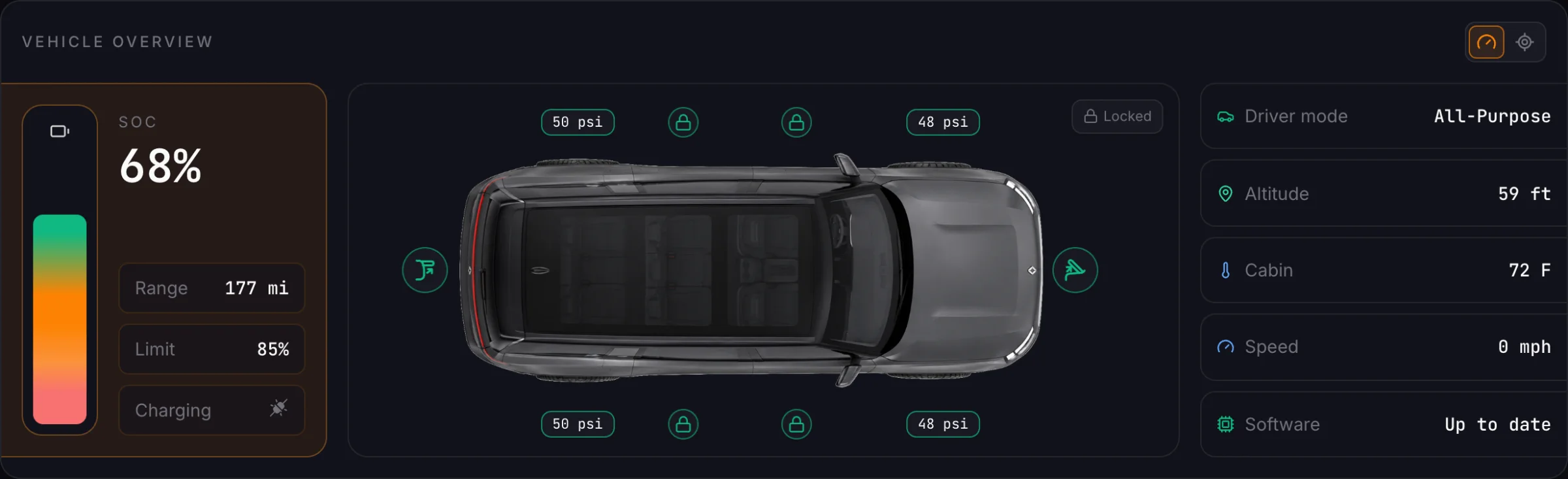
The cluster view has three areas, left to right:
- Battery. A charge bar and the state of charge, with the estimated range, the charge limit, and whether the vehicle is charging. While it charges, the time to full appears here too.
- Vehicle. An overhead image of your vehicle with a pressure reading at each tire, outlined in green, amber, or red by tire health. Lock icons sit on each door, the frunk, and the rear gate, plus the side bins on an R1T, and the badge in the corner says whether the vehicle is locked. With Rivian's own vehicle artwork, open doors are drawn open on the image.
- Stat rows. Five current readings, such as driver mode, altitude, cabin temperature, speed, and software update status. You choose which five; see Choose the stat rows.
The panel picks its layout from its own width. Narrower placements tighten the spacing, and on a phone the three areas stack.
Map view
The two buttons in the panel's top right switch between the cluster view (the gauge) and the current location map (the crosshair). The map takes the place of the stat rows. The battery and the vehicle image stay.
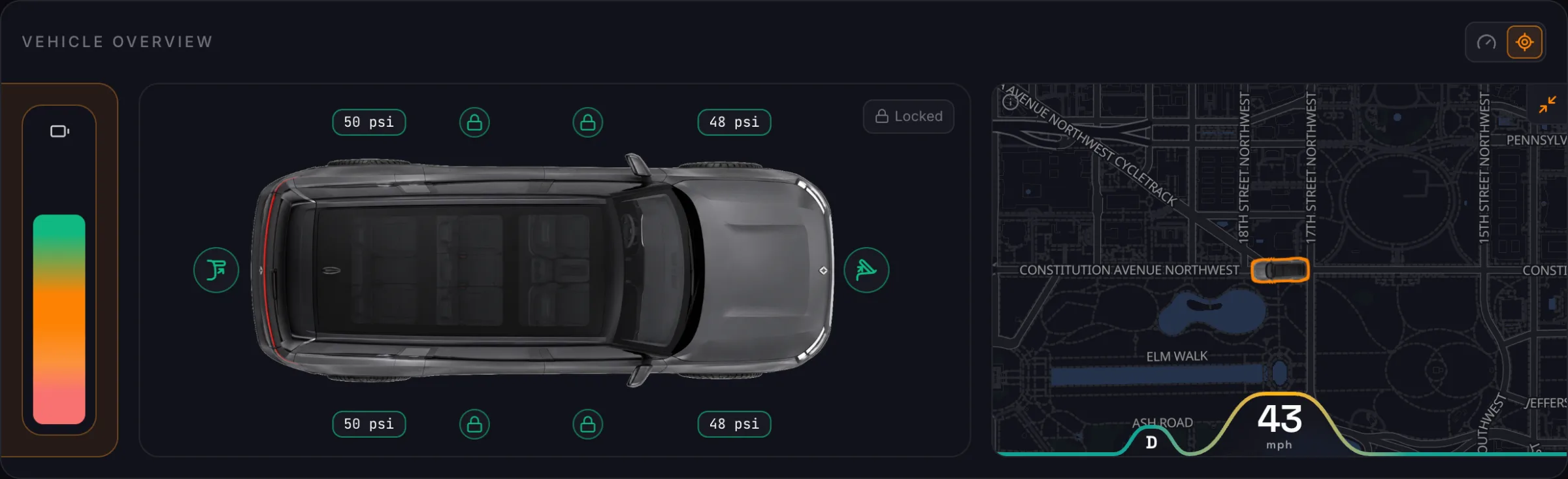
- The marker is a small overhead image of your vehicle, outlined in the accent color and turned the way its nose points. Rivian reports the direction of travel, so after you back into a space Riviamigo turns that reading around to show the way the vehicle actually faces.
- The wave along the bottom of the map shows the gear and speed while the vehicle is moving, or Parked.
- Expand (the arrows in the map's corner) gives the map more room. The battery shrinks to its charge bar and the map takes the space. On a phone it makes the map taller instead. Press it again to go back.
Your choice of cluster or map, and whether the map is expanded, are saved to your account. The Overview opens the way you left it, on any device.
The map needs a reported location. Until the vehicle has reported one, the map says No location reported yet. The street map behind the marker comes from the Map basemap connection in Settings > External Connections. With that connection off, the vehicle is still placed, on a plain background. See External connections.
Customize the Vehicle Overview
Enter edit mode and click the Vehicle Overview's pencil. Besides the title and visibility, it has two sections of its own.
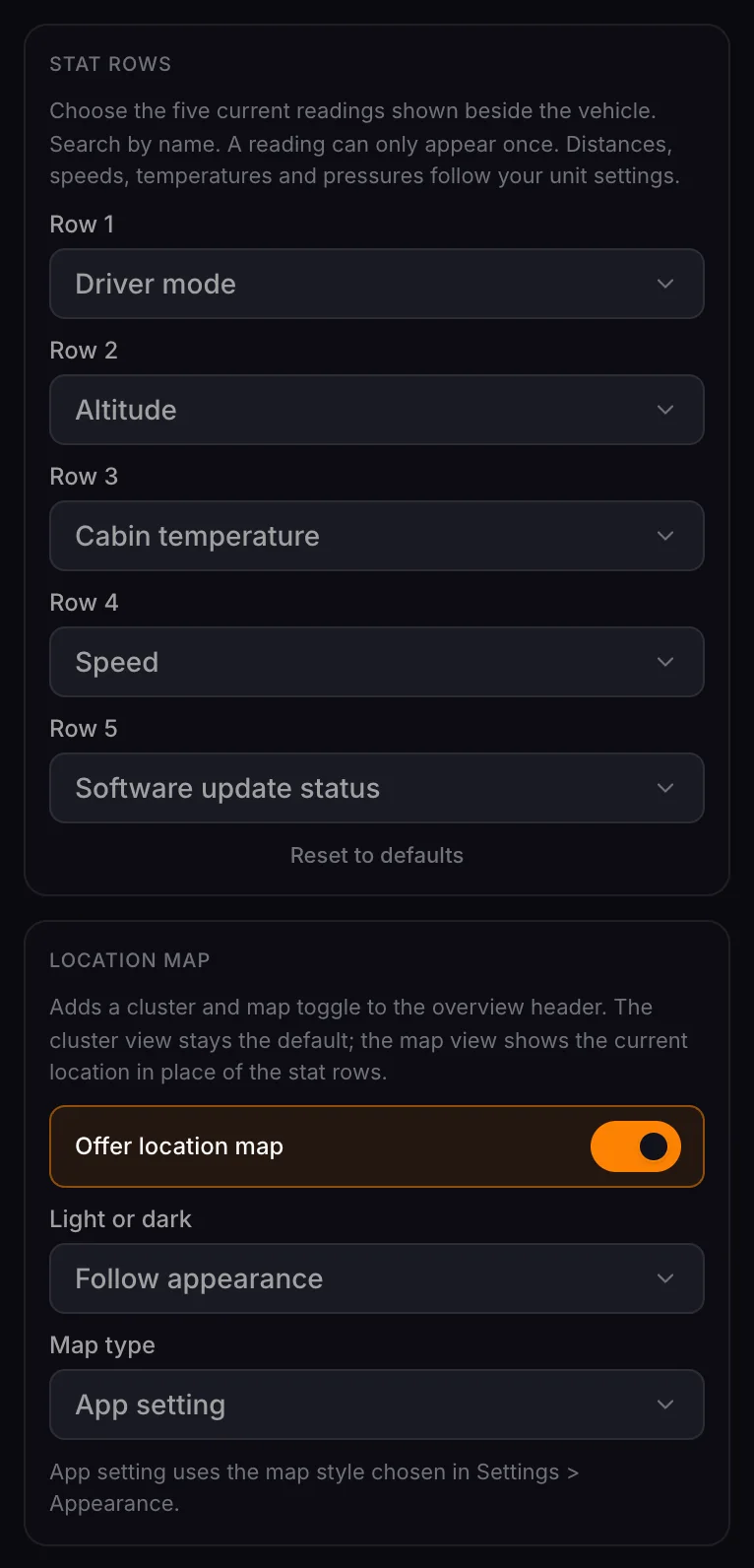
Choose the stat rows
Stat rows has one picker per row. Each picker is searchable: type part of a name, such as "tire", to filter the list.
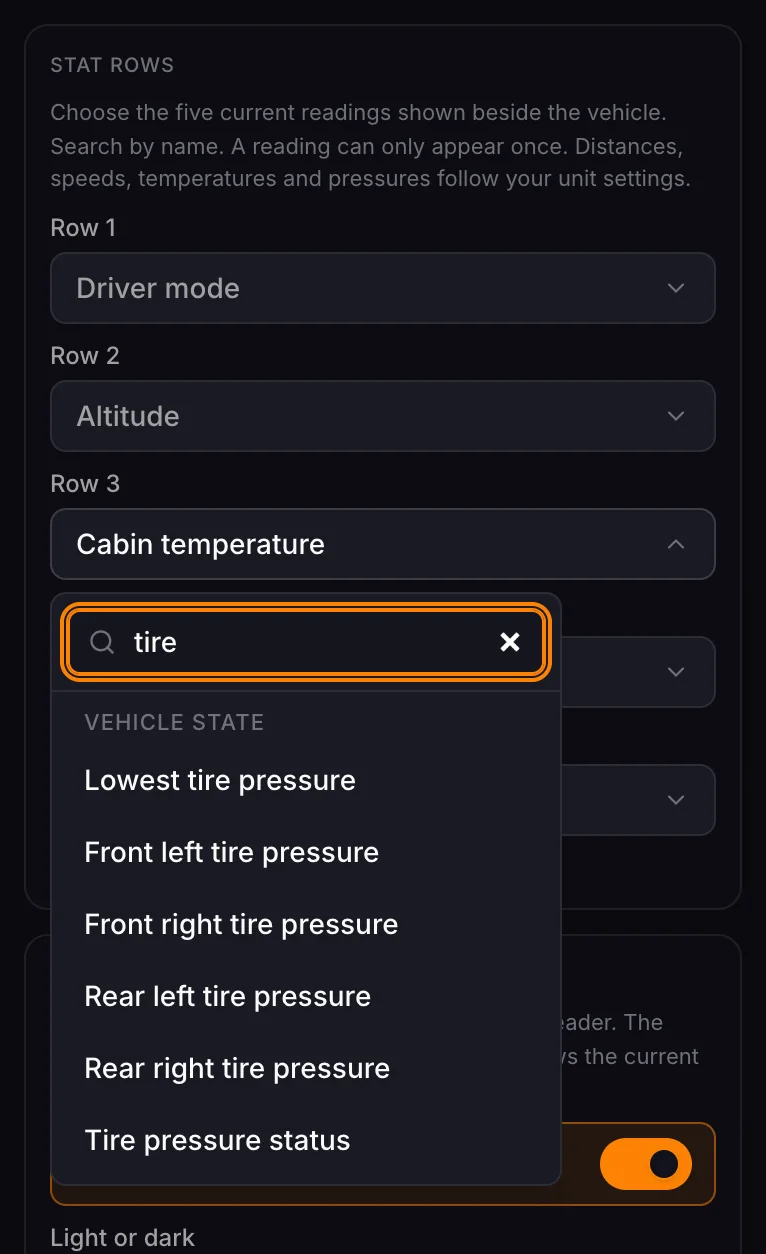
The readings come in three groups:
- Vehicle state: live readings such as driver mode, speed, altitude, cabin, outside and driver-zone temperatures, odometer, power, heading, each tire's pressure, the lowest tire, charge limit, charger state, and time to full.
- Vehicle systems: status readings such as the 12V battery, the high-voltage battery's thermal state, current and available software, the charge port, seat and steering wheel heating, defrost, Pet Mode, Gear Guard, the tonneau, the alarm, and brake and washer fluid.
- Battery health: battery health, estimated degradation, usable capacity, maximum range, charges, charging cycles, energy added, and charge efficiency.
A reading can appear in only one row, so readings already in use are left out of the other pickers. Distances, speeds, temperatures, and pressures follow your unit settings. Reset to defaults goes back to driver mode, altitude, cabin temperature, speed, and software update status.
Location map
- Offer location map shows or hides the cluster and map buttons. Turn it off to keep this panel on the cluster view.
- Light or dark follows the app's appearance by default, or always uses a light or a dark map.
- Map type uses the map style from Settings > Appearance by default (App setting). You can pick a specific style for this panel instead: Positron, Bright, Liberty, Dark, Fiord, or 3D (Liberty).
Press Save in the drawer's top bar to keep your changes. See Save or discard.